Posts

Showing posts with the label SSRS Report

User 'UserID' is not authorized to select a record in table 'CustDefaultLocation'. Request denied. Cannot select a record in Customer default locations (CustDefaultLocation). Access Denied: You do not have sufficient authorization to modify data in database.
Image
Hi AX Technical, Today, in this post we will talk about an SSRS Report Error and its solution. Please have a look at the below error: If you are getting this below error that means you need to enable remote errors first. Please click on this link to check the solution. Once you enable the remote errors you can check for below error solution: Error : User 'UserID' is not authorized to select a record in table 'CustDefaultLocation'. Request denied. Cannot select a record in Customer default locations (CustDefaultLocation). Access Denied: You do not have sufficient authorization to modify data in database. (S)\Classes\xInfo\add (S)\Classes\Info\add - line 94 (S)\Data Dictionary\Tables\CustDefaultLocation\Methods\exists - line 6 (S)\Classes\LogisticsLocationDefault\defaultExists - line 18 (S)\Classes\LogisticsLocationDefault\findSimpleDefault - line 19 (S)\Data Dictionary\Tables\SalesTable\Methods\initFromCustTableMandatoryFields - l...
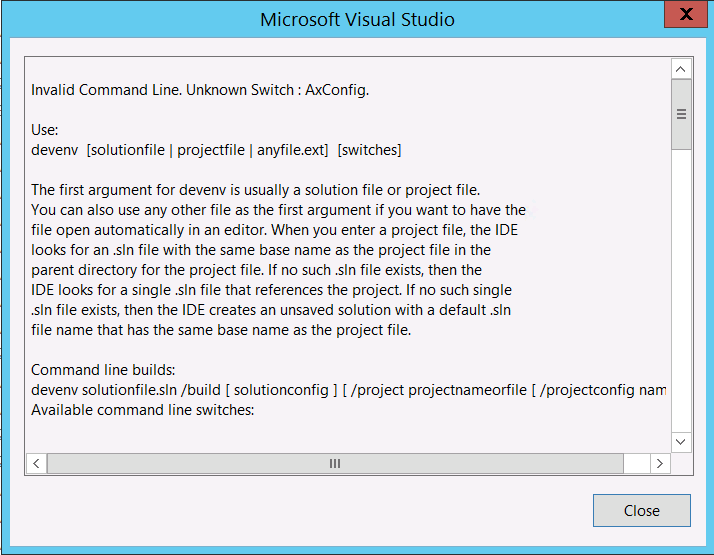
Invalid Command Line. Unknown Switch : Axconfig. While opening the visual studio shortcut with /AxConfig Parameter

Image
Hi Technical, Today, we faced a weird issue while opening Visual Studio from AX 2012. Error:  Invalid Command Line. Unknown Switch : Axconfig. Use: devenv  [solutionfile | projectfile | anyfile.ext]  [switches] Solution:  It is because of two reasons either Visual Studio tools are not installed properly or Visual Studio is not compatible with AX 2012. Follow the steps for installing visual studio 2013 tools: 1) Run AX setup. 2) Select Visual Studio 2013 tools from Developer tools option. 3) Run the prerequisite validation if all okay then go ahead, in our case we got one error. 4) For AX 2012 R3 Visual Studio 2013 update 2 is must so asked your System Admin to install the update. 5) Once update 2 installed, install the visual studio 2013 tools again. 6) Restart the server after complete installation. 7) For configuration the visual studio, open the Start menu, right-click Visual Studio and select Properties. 8) Upd...

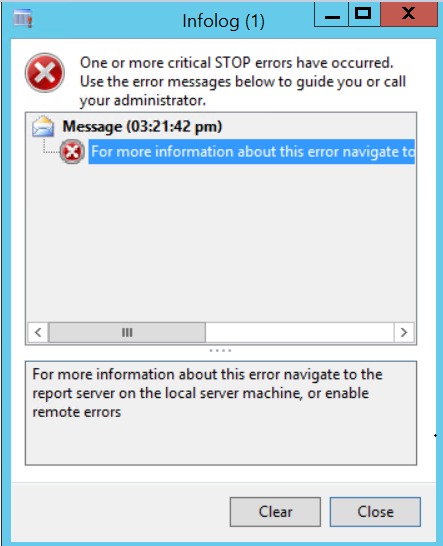
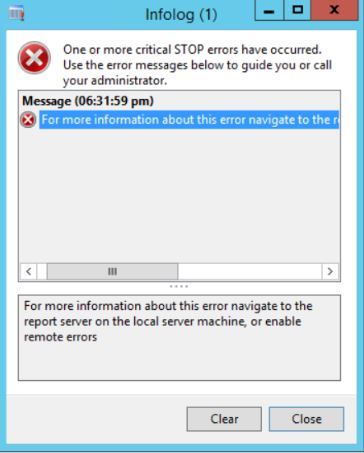
For more information about this error navigate to the report server on the local server machine, or enable remote errors - SSRS Report Error

Image
Hi Technical, Today, in this article we are going to share a solution for below error while printing SSRS Report in AX 2012. Error: For more information about this error navigate to the report server on the local server machine, or enable remote errors. Solution: Step 1:  a) Navigate to System administration/Area page/Setup/Services and Application Integration Framework/Inbound ports. b) Click on BI Services and Deactivate this. c) Now, Activate the BI Services and for testing check any invoice report. It is works then okay otherwise check step 2 below. Note : No need to take a downtime for this step. Step 2: Restart SSRS Services and for testing check any invoice report. It is works then okay otherwise check step 3 below. Step 3:  a) Take a downtime for production if you are facing this issue in Live server. b) Delete all client session. c) Restart AOS. d) Restart SSRS Services. e) Now, check any SSRS Report, it should work. We hope thi...

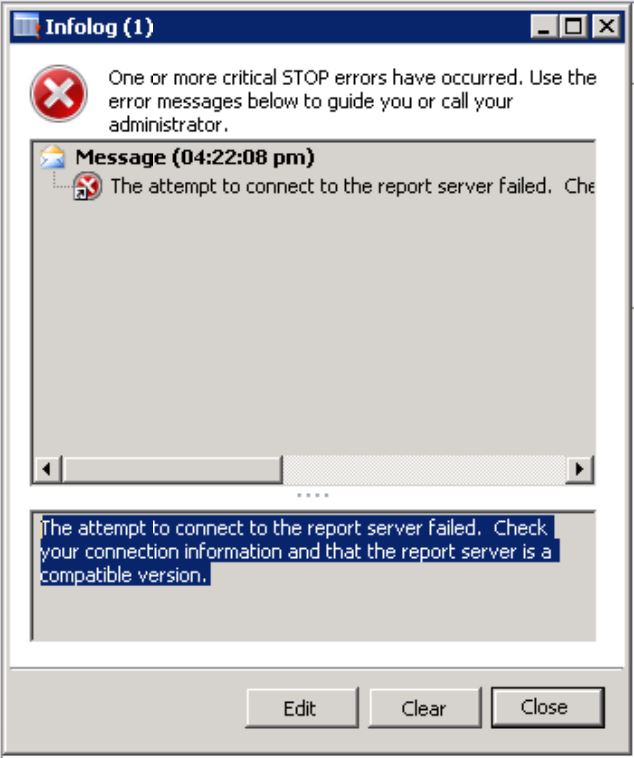
AX 2012: The attempt to connect to the report server failed. Check your connection information and that the report server is a compatible version.

Image
Hi Readers, Today, in this post we are going to share a solution for below error. Error : The attempt to connect to the report server failed. Check your connection information and that the report server is a compatible version. Solution: 1) Login to AX and end user's sessions. 2) Logout from AX. 3) Restart AX AOS services. 4) Restart SSRS Services. 5) Login to AX again and navigate to System administration/Area page/Setup/Business intelligence/Reporting Services/Report servers and click on validate settings. Please see below screenshot for your reference. 6) You should get success message after validating the settings. 7) Now, try to run a report and wait for sometime as it will take sometime to run the SSRS reports first time. 8) Enjoy, error is resolved. Comment below if you found this article helpful... Author : Chirag Gupta Microsoft Dynamics 365 AX Technical Consultant at IBM Bangalore Date : 3-Jan-2020 Happy Learning !!

AX 2012 - How to send SSRS report in email as an attachment using X++

Hi Technical, Today, in this post we will share, how you can send SSRS report in email as an attachment using X++. Please find the below code... // Created by: Chirag Gupta // Created date: 17-Sep-19 // Summary: Send SSRS Report in excel format as attachment in email. public void EmailSSRSReport(Args _args) {     SrsReportRunController controller = new SrsReportRunController();     SRSPrintDestinationSettings printSettings;     SrsReportEMailDataContract  emailContract;     // set report name     controller.parmReportName(ssrsReportStr(RMPMBPRReport, Report));     // create email contract     emailContract = new SrsReportEMailDataContract();     // fill in the email contract details     emailContract.parmAttachmentFileFormat(SRSReportFileFormat::Excel);     emailContract.parmSubject("RMPM BPR Report " + strUpr(curext()));     emailContract.parmBody(...

[Solved] : AX 2012 - No connection could be made because the target machine actively refused it 192.168.10.249:8201

Image
Hi Readers, Today, all users from my working location faced below issue when they were running SSRS Report on AX 2012 R2/R3 version. Error : No connection could be made because the target machine actively refused it 192.168.10.249:8201 Solution : Step 1: End all users session from AX by logging out online users from System Administrator. Step 2: Close your AX and restart AX services . Step 3: Restart SQL Server Reporting Services ( SSRS ). Now, you can run the reports successfully. Author : Chirag Gupta Microsoft Dynamics 365 AX Technical Consultant at IBM Bangalore Date : 9-Sep-2019 Happy Learning !!

AX 2012 - How to print current date and time on SSRS Report

Hi Folks, Today, we are here with a new post for printing current date and time on SSRS Report, so you can use below format to print Date, Time and DateTime on your report. To print date: Format(Now, "dd/MM/yyyy") To print time: Format(Now, "hh:mm tt") To print datetime: =Format(Now, "dd/MM/yyyy") & vbCrLf & Format(Now, "hh:mm tt") Author: Chirag Gupta Microsoft Dynamics 365 AX Technical Consultant at IBM Bangalore Date: 3-Sep-2019 Happy Learning !!